Stop explaining the same decisions to every coding session.
Keep customer requests, research, and architecture decisions connected to the work they inform—so you and your coding agent can recover the reasoning when you need it.
Find the reason. Make the next change with context.
Why did we choose a queue? What did the customer actually ask for? Keep the original explanation with the project instead of hunting through old conversations.
Customer context
Customers need quieter reminders
Customers want to stop repeated reminders after a recipient signs, and avoid sending them overnight.
- Source
- Customer interview notes
- Example related work or spec
- Reminder preferences feature
- Why keep the connection?
- Explains the customer problem
These examples show six of the Library’s item kinds. It also supports notes, benchmarks, imported material, and generated content.
A place to read, search, and return to.
Open an item to read its body and source context. Use the collection to find material by title, type, or other filters; configured semantic search can help with questions phrased differently from the original text.
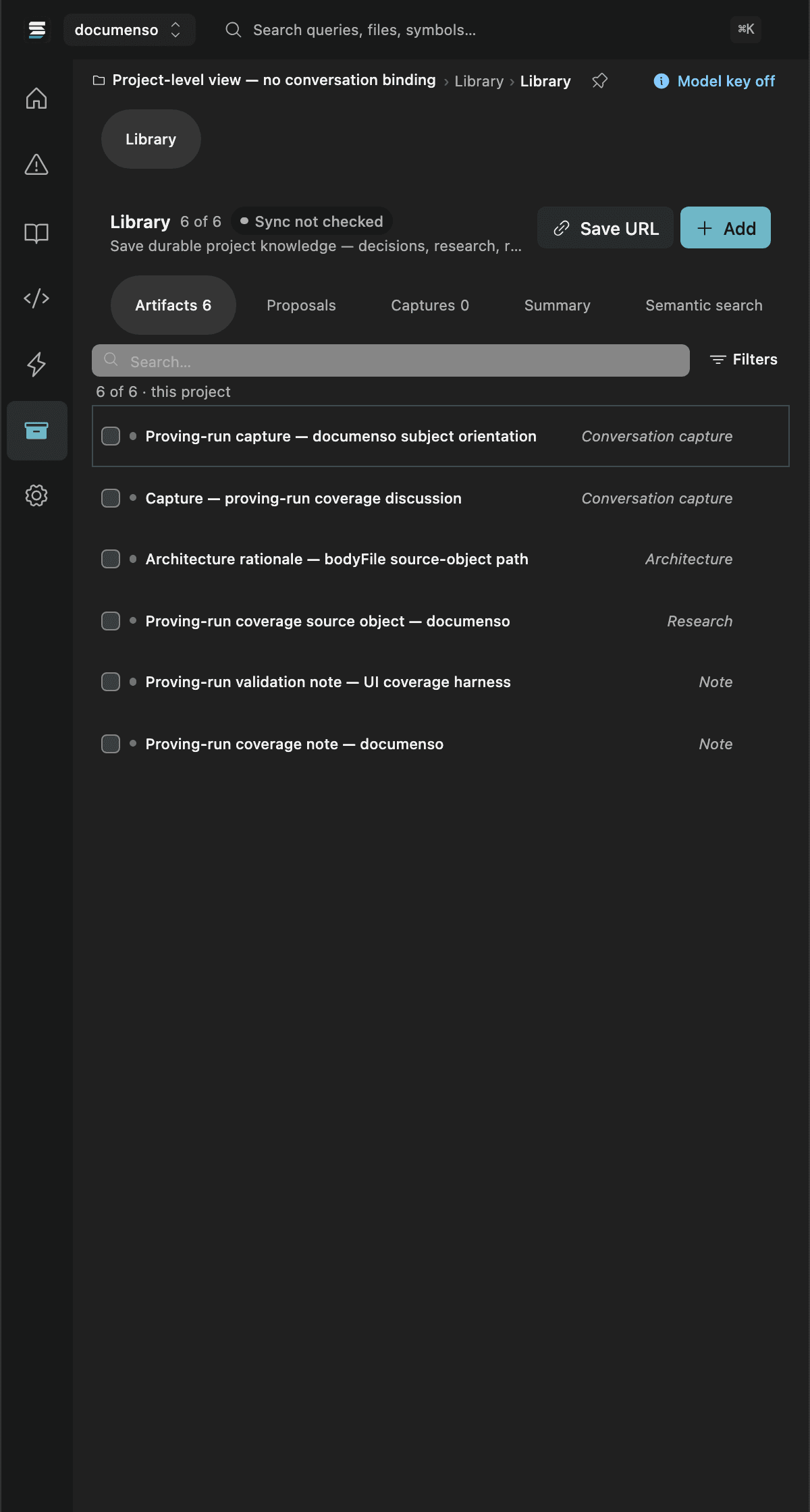
Two weeks later, the decision is still there.
You chose a queue so reminder delivery could retry failures. When another agent changes delivery behavior, retrieve that decision through the linked task instead of reconstructing why.
“Link ‘Why reminders use a queue’ to ‘Build reminder delivery worker’ as its implementation rationale.”
Step 1
Open the Library item
Find the architecture note and read why queued delivery was chosen.
Step 2
Choose Link
Choose a work-item target, enter its reference, and record a reason such as “implementation rationale.” You can also ask the coding assistant to make this link.
Step 3
Retrieve the context later
The relationship is saved with the Library item. The source can be looked up by its linked task, so a later session can recover the rationale.
About this illustration
This example explains the workflow. A product recording is planned for this space showing open the item, add a relationship, then show that relationship on readback.
Bring material in. Keep its meaning clear.
Choose how to add a source, then decide how it should inform the project.
Write, paste, or capture a conversation
Save a note directly or preserve a useful passage from a discussion. Give it a title, kind and category that will make sense when someone finds it later.
Import project files or a folder
Select supported material already in the project, inspect the import preview, then commit the selected items. The preview is where you check what will be added.
Save a reference URL
Save the link with project context. Fetching its content is a separate choice in the URL flow.
Propose an update to Specs
Use the item to prepare a Specbook promotion proposal. Review and acceptance are separate from saving or linking the source; the Library item remains supporting material.
A link explains a relationship. It does not start a task or accept a requirement. Current Link dialogs use a target reference; supported sources and richer host controls vary by build.
Turn saved context into the next clear step.
Library holds what you have learned. Specs record what the product should do. Work holds the next action.