Your agent does the coding. Strata19 keeps the project connected.
Keep your coding harness, model choice, and existing workflow. Add searchable project context, resumable work, and a visual project view where your host supports it.
Keep your coding agent. Keep the project moving.
You do not need another coding harness. Keep building in Codex, Claude Code or another supported host. Strata19 adds the project context and visual tools around that conversation.
Your coding conversation
Your existing host runs the agent, edits files and executes commands.
Before changing reminders, find the signing rule, the queue decision and any unfinished work.
Ask the agent to retrieve that context through Strata19 tools. Inspect the relevant project records, then continue implementation in the same coding workflow.
The next session can pick up the project—not just the chat.
Specs, linked source material, work and recorded results stay with the bound local project. Ask for what is relevant instead of rebuilding the explanation from memory.
Your Strata19 project view
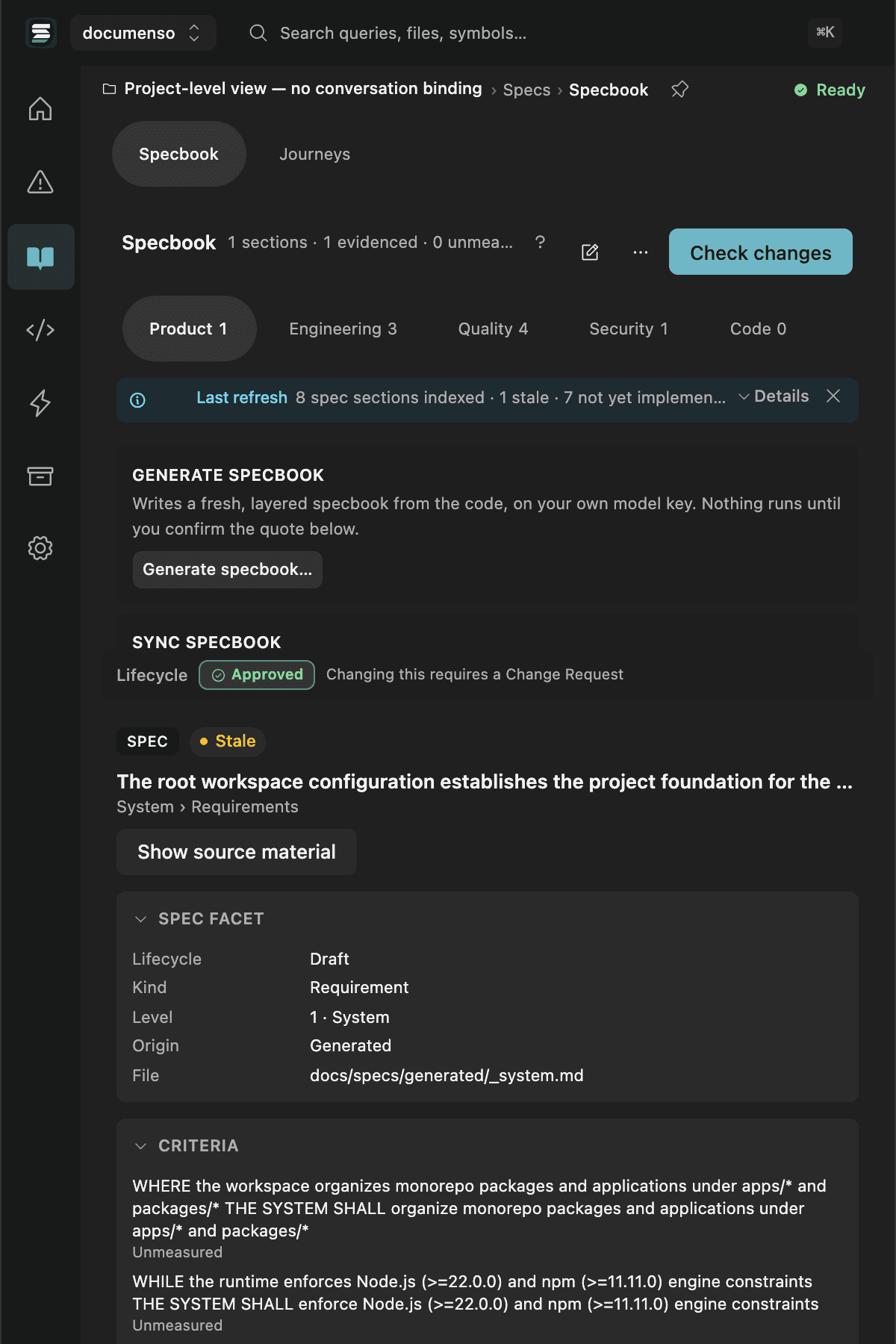
Browse the project alongside the conversation in a supported MCP app pane, or open the local workspace in a browser.
The harness implements
Keep its model choice, editor, terminal and permission controls. Strata19 does not replace the coding agent.
Strata19 connects
MCP tools let the agent query and update supported project records. The visual app helps you inspect those records directly.
You review
Decide what to accept, authorize and verify. A saved specification or a completed agent task is not proof of correct behavior.
Desktop panes, browser views and terminal tools
Embedded MCP apps depend on the host, version and enabled capabilities. A browser view is a separate way to inspect the project; terminal hosts can use MCP tools without rendering the visual app. Claude Desktop’s Code tab uses the Claude Code plugin; Chat and Cowork have different extension systems. A tool connection does not prove visual-pane support.
Install the plugin or MCP configuration, bind your repository and verify a real project call. Hooks require their own trust decision. Optional Strata19 model assistance has its own inference configuration; your coding-agent subscription does not automatically cover it.
Conversation and project view, side by side.
Use MCP tools from your coding host. Where the host supports the MCP app, open the visual project view beside the conversation.
“Open the reminder feature, show its work, and help me decide what to do next.”
Step 1
Install in your host
Choose Codex, Claude or another supported integration and connect Strata19 to the repository.
Step 2
Ask and inspect
Use the assistant to query or guide project work. Open the supported visual pane to browse the relevant records.
Step 3
Return to the project
Reopen durable specs, Library material and work later. CLI and TUI hosts provide a different visual experience from desktop panes.
About this illustration
This example explains the workflow. A product recording is planned for this space showing the actual project pane alongside the conversation in each supported desktop host.
Choose your host
Same project layer. Host-specific setup.
Choose the environment you use today. Compare the installation, tool access and visual surfaces—not just whether a host supports MCP.
Codex CLI + Desktop
Install the same local project layer in Codex CLI or Desktop.
How the connection works
Codex
Your coding host
Strata19
Local project layer
Repository
Source and evidence
- Install path
- Plugin marketplace package
- Available surfaces
- CLI tools and the desktop project pane
- Last verified
- Strata19 plugin package · 2026-08-28
Set up Codex
Requires Node.js 22.5 or newer, a compatible host, and a repository to initialize.
codex plugin marketplace add https://github.com/jordanallen87/praetor.git
codex plugin add strata19@strata19
Restart the host after installation. In a Codex conversation, use /hooks to review and approve lifecycle hooks; installing the plugin alone does not enable them. Then open your repository and ask Strata19 to initialize it. Confirm the connection with a repository-backed tool call.
Evaluating next: Cursor, GitHub Copilot, Gemini CLI, Windsurf.
What each status meansExtensions & customization
Make Strata19 your own.
Bring your team's practices into your development environment, from reusable routines to deeper extensions.
Routines & packs
Adapt supported routines and semantic packs to reflect how your project works and the technologies it uses.
Project extensions
Explore the project-local manifest format for extending project conventions. Its contribution types have different levels of support; a declared extension is not necessarily executable.
Build on the source
Developers can contribute skills, detectors, and MCP tools in the Strata19 source, then test and package them for supported hosts.
Explore extension guides
Check the guide for version and host requirements. Source changes require a rebuild and reinstall; project-local contributions have more limited support.
Make it yours
Your workflow, your environment.
Use supported routines and project context with your existing tools. Strata19 adds a project layer; it does not replace your editor or coding agent. Available controls and visual surfaces vary by host and version.